Trackpad gestures for volume, brightness and windows on Mac
UtilityPad: Your trackpad's edges become controls. Slide for volume and brightness, tap a corner for a screenshot, flick in to snap a window. The middle stays a normal trackpad.
Free for 7 days, then $2 once · Version 1.6.0 · 2.6 MB · macOS 13 or later · MacBook trackpad or Magic Trackpad · Apple silicon and Intel
What is UtilityPad?
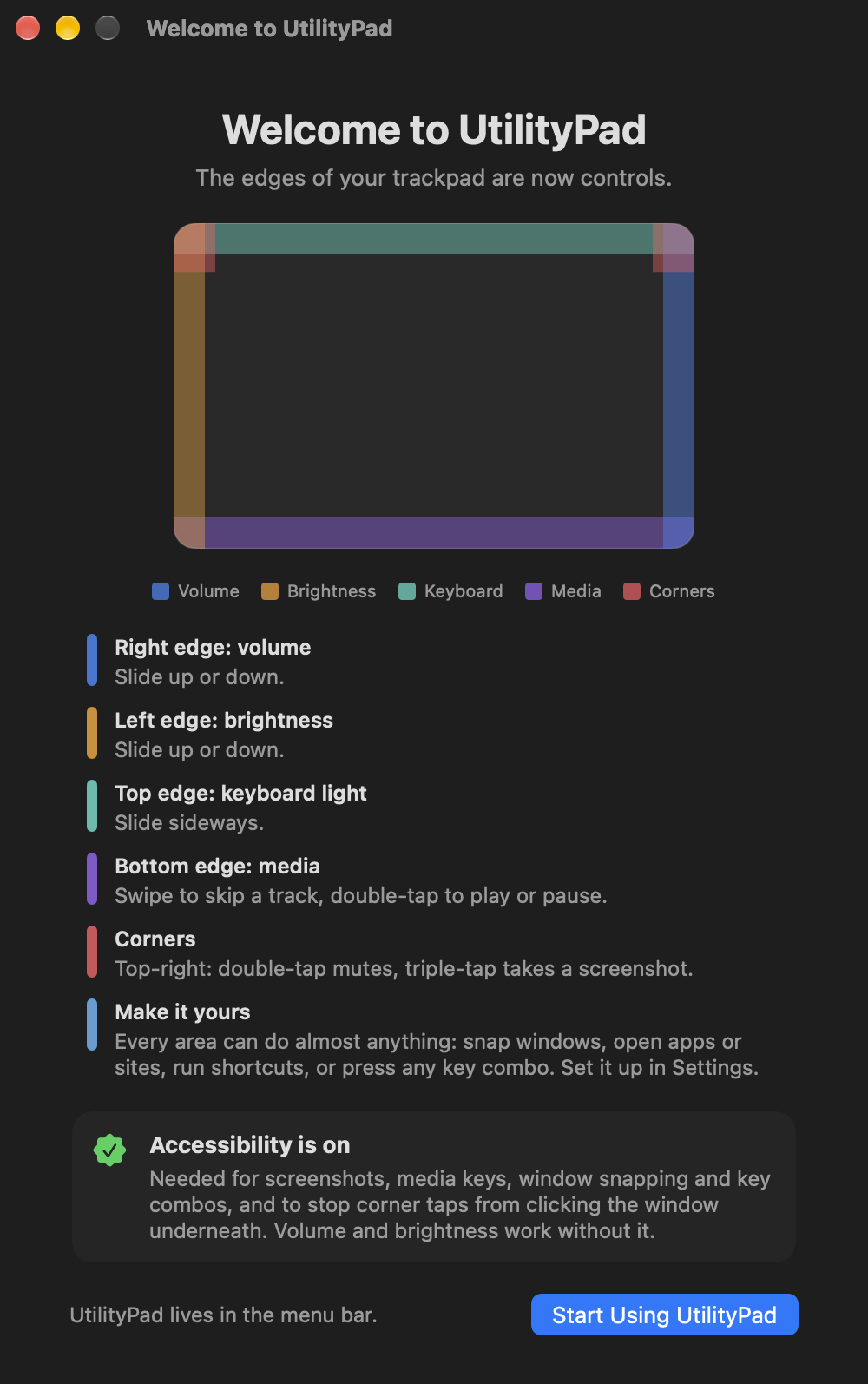
UtilityPad is a small menu bar app for macOS that turns the edges and corners of your MacBook trackpad or Magic Trackpad into controls. Slide along the right edge to change the volume, along the left edge for brightness, tap a corner for a screenshot or mute, and flick in from an edge to snap a window to half the screen. The middle of the trackpad keeps working exactly as before.
- What it is
- A menu bar app that adds edge and corner gestures to the Mac trackpad
- Price
- $2 once (lifetime license), free 7-day trial
- Works on
- macOS 13 Ventura or later, Apple silicon and Intel
- Trackpads
- MacBook built-in trackpad and Apple Magic Trackpad
- Size
- About 2.6 MB download
- CPU use
- About 0.5% while you use the trackpad, close to zero otherwise
- Account
- None needed. No ads, no subscription
- Licenses
- One key works on up to 2 Macs, updates included
- Privacy
- Works offline. Only an anonymous daily count, which you can switch off
- Version
- 1.6.0, updated 2026-11-12
How UtilityPad works
The middle of the trackpad points and clicks as always. Only the thin strips along the edges and the corners do new things.
Slide along an edge
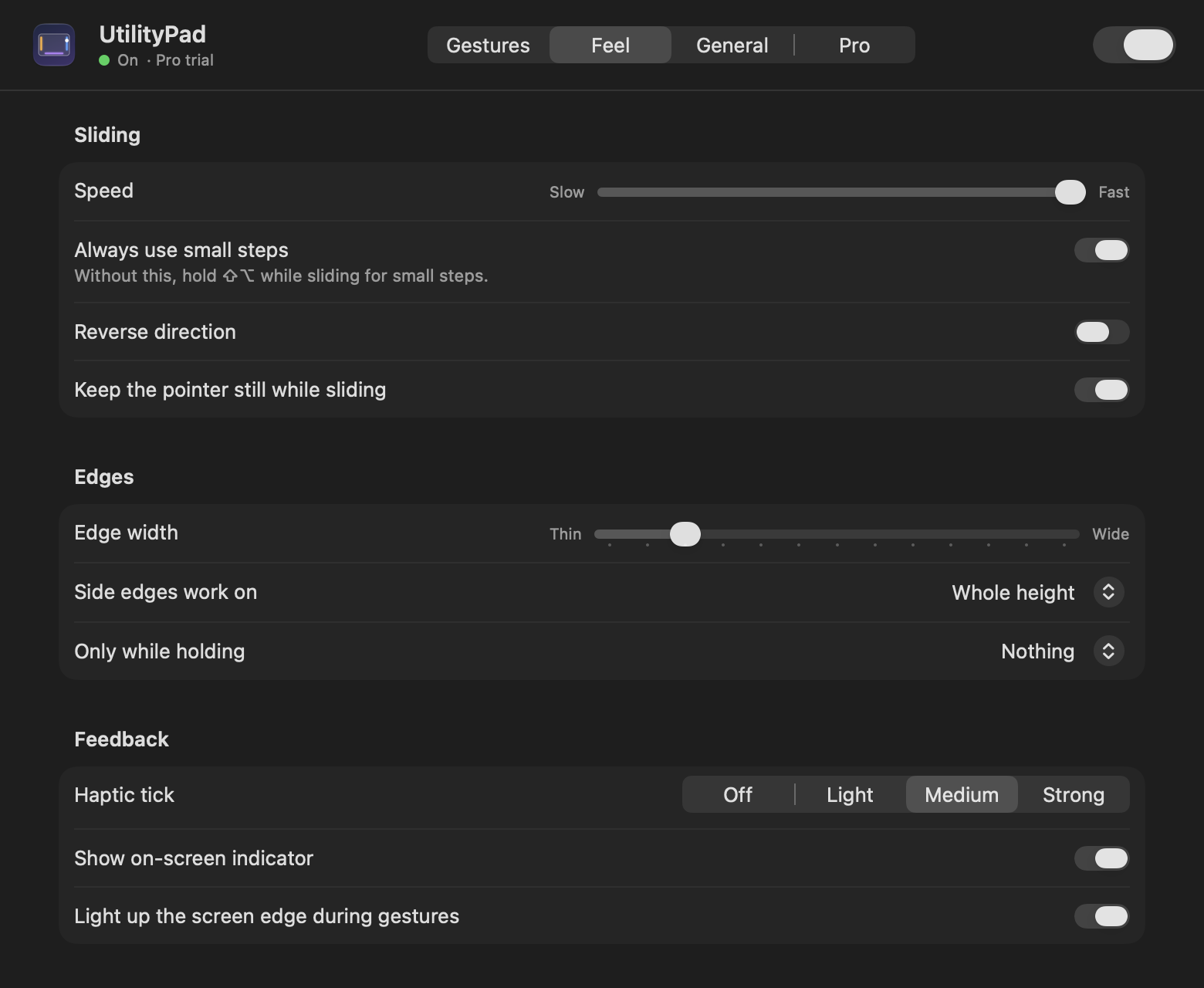
Run a finger up the right edge and the volume rises. The pointer stays still while you slide.
Tap a corner
Double-tap or triple-tap a corner. Up to eight actions live in the four corners.
Flick in from an edge
A quick flick toward the middle snaps a window, opens Mission Control or shows the desktop. Slow moves stay normal pointing.
Features
Everything is included in the trial and in the $2 license. Nothing is held back.
Change volume with the trackpad
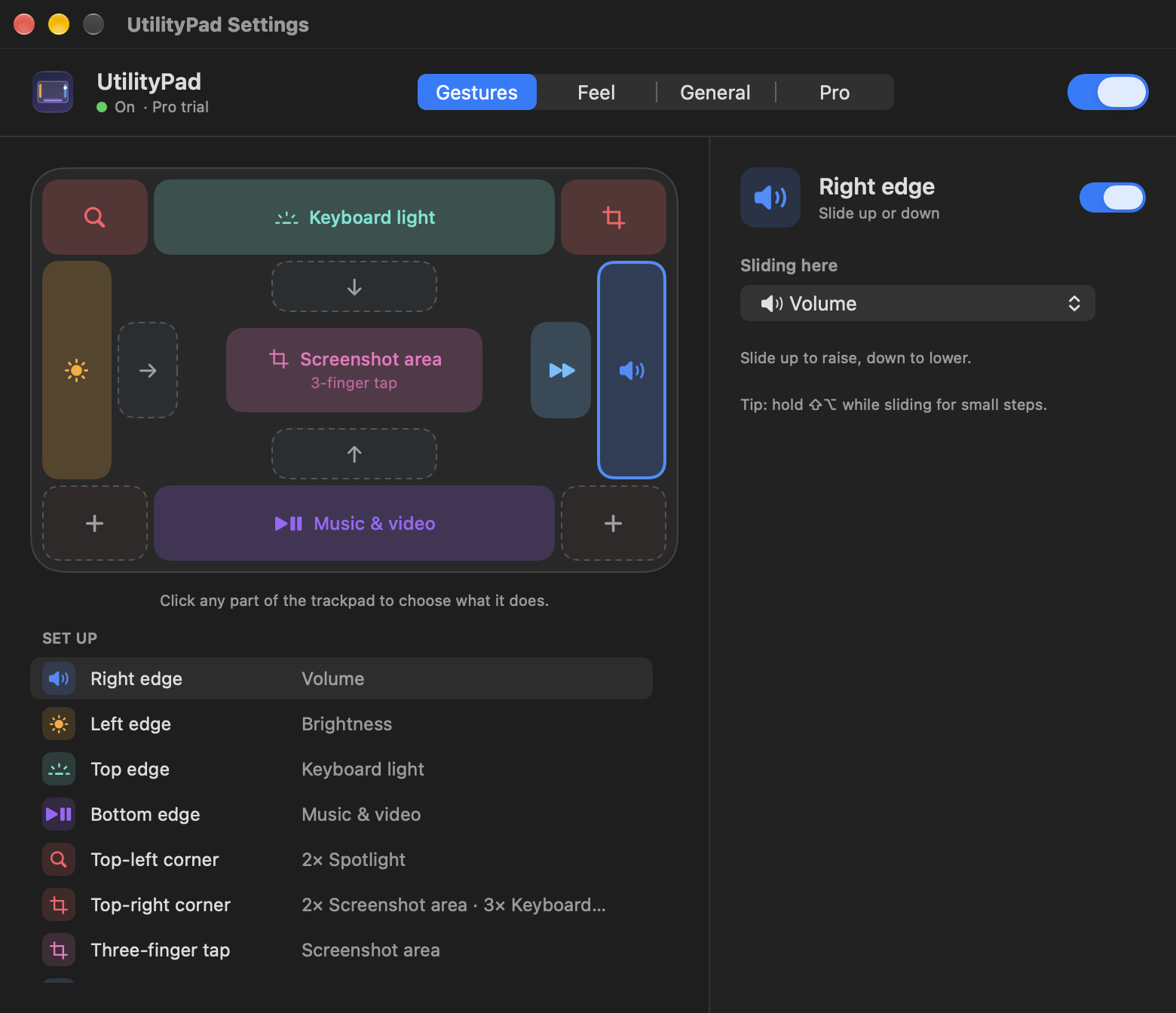
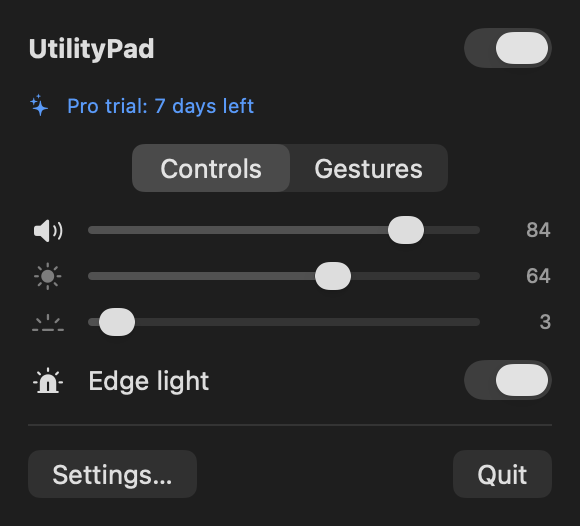
Slide a finger up or down the right edge of the trackpad to change the volume. Hold Shift and Option for fine quarter steps, just like the keys.
Right edgeChange brightness with the trackpad
Slide along the left edge for screen brightness, and along the top edge for the keyboard light. A soft tick tells you each step.
Left edgeTop edgeSnap windows to half the screen
Flick in from the left or right edge to snap the front window to that half of the screen. Flick from the top to maximise it, or from the bottom for Mission Control. Works on macOS 13 and 14, which have no built-in snapping.
Flick inScreenshots and mute from a corner
Double-tap or triple-tap any of the four corners. Out of the box the top-right corner mutes the sound and takes an area screenshot. Corner taps never click the window underneath.
8 corner actionsMusic and video controls
Swipe along the bottom edge to skip a track and double-tap it to play or pause. Works with Music, Spotify, YouTube and anything that listens to the media keys.
Bottom edgeThree-finger tap
Give a light three-finger tap any action: a screenshot, mute the microphone, lock the screen or switch to dark mode.
AnywhereYour own shortcuts, apps and Shortcuts
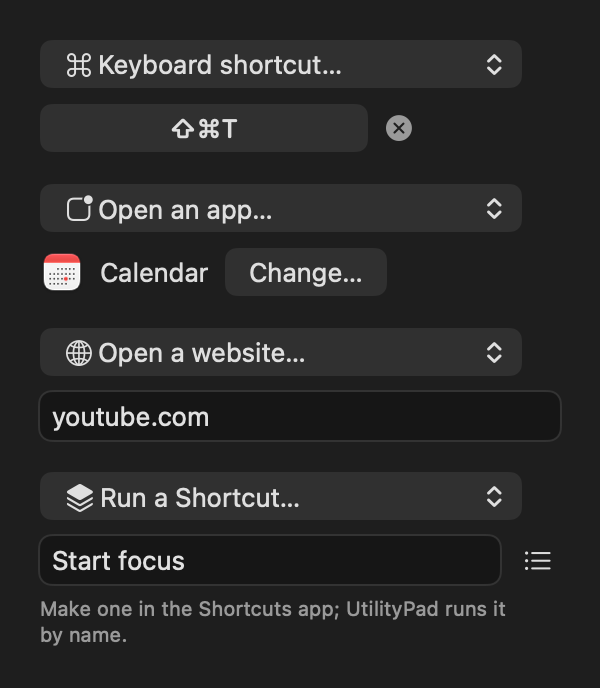
Record any key combo, open an app or website, or run something you built in Apple's Shortcuts app, from any edge, corner or tap.
CustomMore slide modes
Turn an edge into a dial for browser tabs, scrubbing video, zoom, switching desktops, undo history or scrolling pages.
TabsVideoZoom20-20-20 eye break reminder
Every 20 minutes (or 10 to 90, your choice) the screen gently blurs and asks you to look far away and blink. It clears by itself. Skip or snooze any time.
Eye careScreenshots
UtilityPad compared with other ways
| UtilityPad | BetterTouchTool | macOS built in | |
|---|---|---|---|
| Price | $2 once | Paid license | Free |
| Volume and brightness from the trackpad | Yes, slide an edge | Yes, set up by hand | No |
| Snap windows with a gesture | Yes, flick in | Yes, set up by hand | Drag only (macOS 15+) |
| Corner taps | Yes, 8 actions | Yes | Hot corners (pointer, not taps) |
| Ready the moment you open it | Yes | Needs setup | – |
| Eye break reminder | Yes | No | No |
BetterTouchTool is excellent and does far more. UtilityPad is for people who only want edge and corner gestures, set up in a minute.
Price: $2 once, free for 7 days
Free trial
- The whole app, every feature
- No card, no account, no email
- Nothing is charged when it ends
UtilityPad license
- Keep using every feature after the trial
- All future updates included
- Use on up to 2 Macs
- 14-day refund, no questions asked
Local tax may be added at checkout. Your license key arrives by email: paste it in UtilityPad › Settings. Payments by Dodo Payments, our Merchant of Record. Refund policy.
How to install UtilityPad
Fastest: paste this in Terminal. It downloads UtilityPad, puts it in Applications and opens it.
curl -fsSL https://2dollarmacapps.com/install-utilitypad.sh | bashOr download the app:
- Download UtilityPad and open the file. Drag UtilityPad into Applications.
- Double-click UtilityPad. macOS says it can't check the app because it isn't from the App Store. Click Done.
- Open System Settings › Privacy & Security, scroll down and click Open Anyway next to UtilityPad. You only do this once.
- Allow Accessibility when UtilityPad asks. Screenshots, media keys and window snapping need it. Volume and brightness work without it.
SHA-256 of UtilityPad.dmg 1.6.0: e9a67825b902f56ea18ec60dc12ec06ecf93bbfc9aff91c552cbc146687efcba
UtilityPad questions
How much does UtilityPad cost?
UtilityPad costs $2, paid once. It's a lifetime license with every update included and no subscription. You can try the whole app free for 7 days first, with no card and no account.
Can I change the volume with my Mac trackpad?
macOS has no trackpad gesture for volume. With UtilityPad you slide a finger up or down the right edge of the trackpad to change it, and along the left edge for brightness.
How do I snap windows on a Mac with the trackpad?
With UtilityPad, flick in from the left or right edge of the trackpad and the front window snaps to that half of the screen. It works on macOS 13 Ventura and later, including versions without built-in window tiling.
Will it get in the way of normal pointing?
No. Edges only react to slides along them and corners only to quick taps. Slow moves and anything in the middle of the trackpad stay normal pointing, and you can pause every gesture from the menu bar.
Does it slow my Mac down?
No. UtilityPad uses about half a percent of the CPU while you use the trackpad, and close to nothing otherwise.
Does it work with a Magic Trackpad?
Yes. It works with the built-in trackpad on every MacBook and with Apple's Magic Trackpad, on Apple silicon and Intel Macs running macOS 13 or later.
Is my data sent anywhere?
No. UtilityPad works offline and doesn't collect anything about you. It sends only an anonymous once-a-day count of running copies, which you can switch off in Settings.
Why isn't it on the Mac App Store?
UtilityPad reads the trackpad's raw touches, which App Store apps aren't allowed to do. That's also why macOS asks you to approve it once when you first open it.
What happens after the 7-day trial?
Nothing is charged. UtilityPad asks for a license. Buy it for $2, paste the key from your email into Settings, and it's yours for good. Or delete the app.
Can I get a refund?
Yes. Within 14 days of buying, write to us and you get your money back, no questions asked.
Guides
Try UtilityPad free for 7 days. If you like it, it's $2, once.
Free for 7 days, then $2 once · Version 1.6.0 · 2.6 MB · macOS 13 or later · MacBook trackpad or Magic Trackpad · Apple silicon and Intel